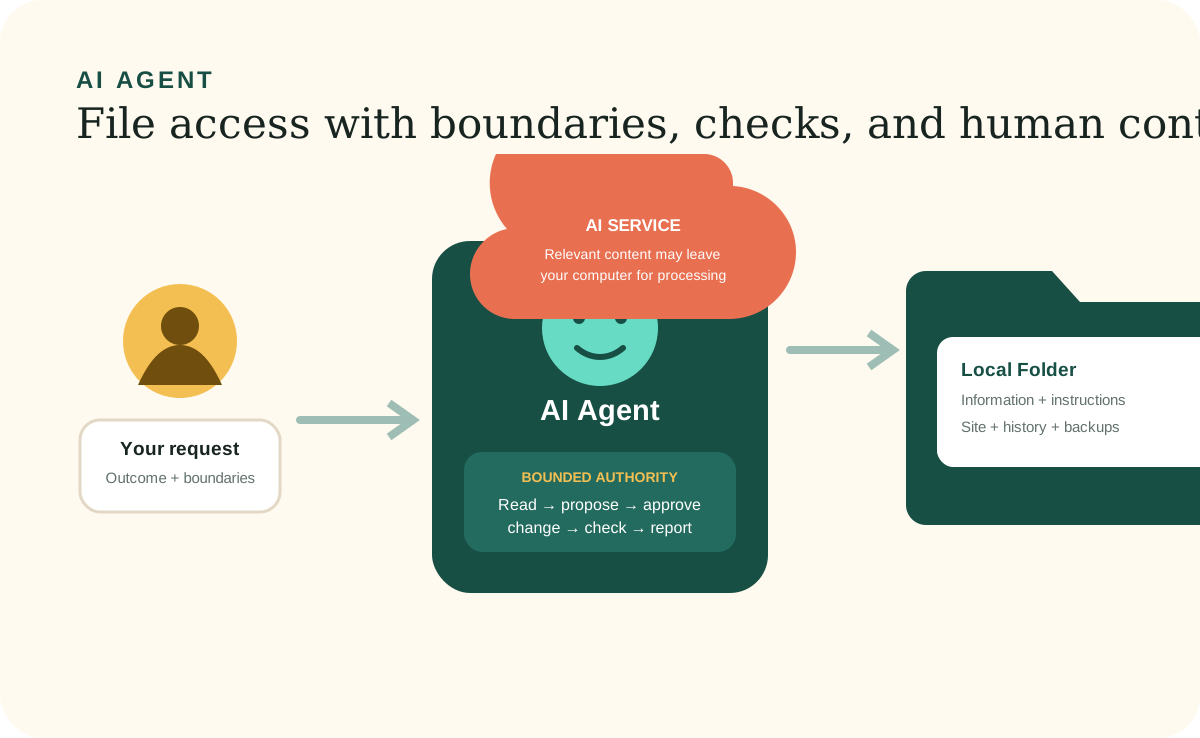
In this guide, a desktop AI Agent means software you can talk to that can also use tools to inspect or change files within the access you grant. Products differ, so available tools, permissions, and approval behavior depend on the agent and its configuration.
That is different from a basic chatbot that only returns an answer in the conversation. An agent can take actions in the workspace. The extra capability is useful, but it also makes folder selection, approval boundaries, privacy, backups, and review essential.
How a request becomes a change
The AI Agent combines today's request with saved workspace context.
In the intended workspace pattern, the agent first identifies the outcome you want and important unknowns. It should read the project instructions plus any relevant Skill or Workflow, then open only the records needed for the task. It can make an authorized change, update the Local Site, check that both agree, and report the result.
This is why the Local Folder matters. The agent does not have to depend on a perfect prompt or remember an old conversation. The workspace supplies durable facts and procedures that both you and the agent can inspect.
Understand
Identify the requested outcome, constraints, and missing decisions before changing anything.
Read
Load the lasting instructions, focused procedure, and only the Workspace Information needed for this task.
Protect and change
Honor approval boundaries, preserve unrelated work, and update the dependable information before its views.
Check and report
Verify the result, refresh affected pages, and name what changed, stayed unchanged, or could not be confirmed.
Folder access
Open the exact folder and verify it before allowing changes.
Desktop agent software usually asks you to open a folder or project. Your computer may also ask whether the app can access Documents or another location. Start with an empty workspace folder or the intended existing workspace, then ask the agent to name the folder and list its top-level items without changing anything.
If the name or contents are wrong, stop and select the correct folder. This read-only check reduces the risk of creating files in an unrelated project and helps confirm the intended boundary. It does not replace operating-system permissions, the agent's sandbox, or review of later changes.
What leaves your computer
Local files do not mean the AI conversation is entirely local.
The workspace files may live on your computer or approved shared storage, and opening the Local Site does not by itself publish them. A cloud-based AI Agent may send your prompt, saved instructions, selected file content, retrieved context, and tool output to its configured service for processing. Storage, retention, and model-improvement practices depend on the provider, account type, settings, and hosting route.
Remove details the task does not need. Never store passwords, private keys, or access tokens in the workspace. Review provider controls before adding client information, and follow contractual or regulated data-handling requirements. A business plan may offer different protections from a consumer plan, but the exact current terms should be checked with the provider.
Bounded authority
Capability is not the same as permission.
Save lasting rules that tell the agent to seek current approval before deleting, sending, publishing, purchasing, or sharing. Ask for a preview and a plain-language explanation of the effect. A well-configured agent should distinguish a proposed action from an authorized action.
For a risky or confusing problem, begin with diagnosis. Ask the agent to compare files, identify the smallest affected area, and propose a repair without making changes. Read-only investigation separates understanding from authorization.
Hard and soft controls
Use both clear instructions and technical limits.
Agent Instructions, Skills, and Workflows are soft controls: they give the model context about what it should do. Sandboxes, operating-system permissions, approval policies, restricted credentials, and provider policy rules are hard controls because they limit what the software can actually access or execute.
Use both. Clear instructions reduce ambiguity and make the intended process reviewable. Technical controls provide the stronger boundary for sensitive files, network access, commands, and consequential external actions.
Recovery and continuity
Chats end and tools change; readable files can continue.
If an agent overwrites something, stop further edits. Compare the current file with a dated backup or version history, restore only the affected part, and check the Local Site again. Broad “fix everything” requests can make recovery harder by changing more evidence.
The Desktop Workspace should not depend on one endless chat or one provider's private memory. Another capable agent can continue later when the information, instructions, procedures, and work summaries live in readable files inside the folder.
Further reading