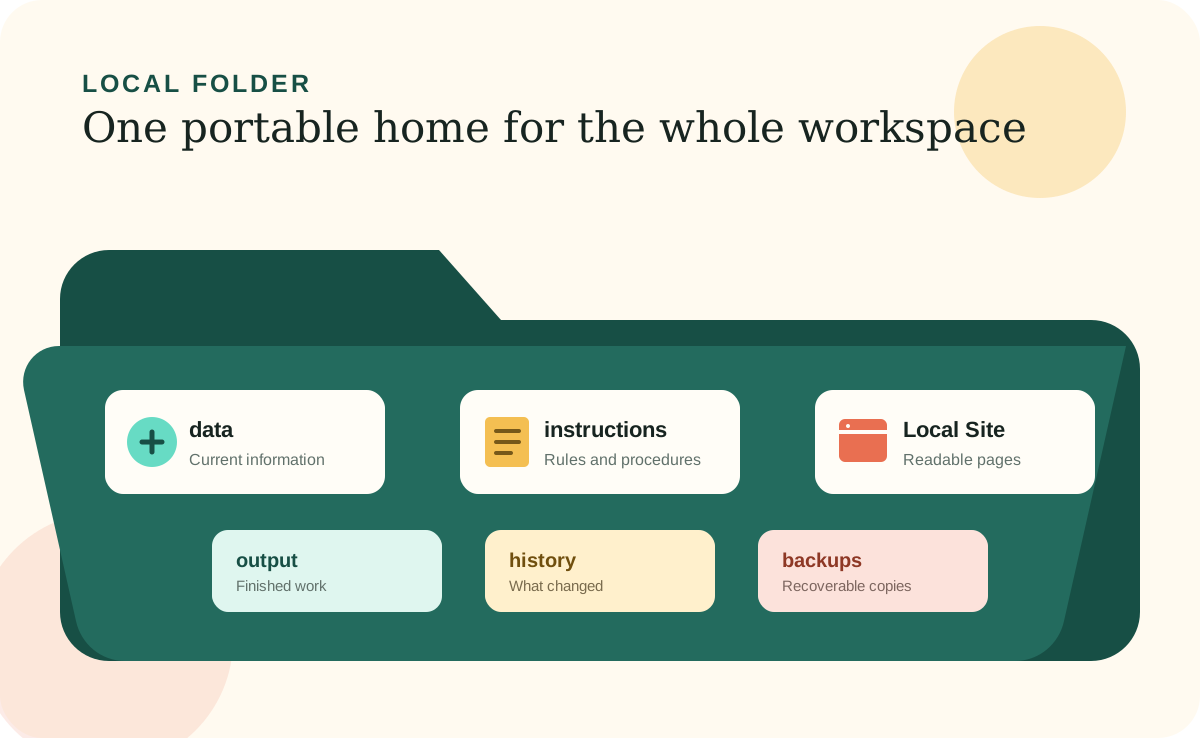
A Local Folder is an ordinary, user-controlled folder that holds a Desktop Workspace. It may live on one computer or in a folder managed by a sync or shared-drive service. It is not a special AI container: you can open it in Finder on a Mac or File Explorer on Windows.
What makes the folder useful is its organization. Current information, instructions, repeatable processes, readable pages, finished output, history, and safety copies each have a dependable home. The AI Agent can work confidently because it knows where to look and where each kind of change belongs.
A container you control
The folder can hold the workspace's durable, inspectable parts.
Hosted software often keeps its primary data on the provider's servers. A Local Folder gives you a different arrangement: the workspace's readable records and instructions live in files you control, while the AI Agent is a tool you permit to read and update them.
Copying a complete, fully downloaded folder preserves those files. It may not preserve external accounts, credentials, installed software, databases, or cloud integrations. Document those dependencies and keep needed exports with the workspace so a folder copy is not mistaken for a complete recovery plan.
What belongs inside
Every area answers a different question.
A simple structure prevents one file from becoming an unmanageable mix of facts, instructions, and presentation. The exact names can change, but the responsibilities should remain clear.
data
What is true now? This is the dependable home for current records, statuses, dates, and decisions.
skills and workflows
How should the work be done? These plain-text instructions capture tasks, sequences, checks, and approval stops.
site
How can a person review it easily? The Local Site turns saved information into readable browser pages.
output, history, and backups
What was produced, what changed, and what can be restored? These areas support use, review, and recovery without replacing the current records.
The one-home rule
An important fact should have one dependable home.
A client's current status might appear on a dashboard, in a follow-up list, and in a recent-activity summary. Those are useful views, but only one saved record should be authoritative. Otherwise, two copies can disagree and nobody knows which one to trust.
The usual pattern is to save the fact in data first, rebuild or update every affected view, then check that the views agree. A finished report belongs in output. A description of the change belongs in history. Neither should quietly replace the authoritative record.
Where to keep it
Choose a location the AI Agent can access and you can protect.
A folder inside Documents is often enough for one person. A trusted file-sync service or managed shared drive can help a small team, provided files are fully available when needed and the service has appropriate access controls and version history. The location matters less than three practical tests: the right people can open it, the AI Agent can reach it, and a separate backup exists.
Do not treat a copy inside the same folder as disaster protection. If the laptop is lost or the drive fails, both the working files and that internal copy disappear together. Keep a current copy on another device or trusted backup service.
A portability check
A healthy folder can move without leaving essential pieces behind.
Test portability rather than assuming it. Copy the folder to a temporary location or another computer, disconnect from the original location, and check whether the current information, instructions, pages, and supporting files are present. Confirm that the home page opens and that a compatible AI Agent can find the rules without months of chat history.
If the test fails, something important may be online-only, linked by an absolute path, dependent on installed software, or known only to a person. Download or export what belongs in the workspace, document unavoidable dependencies, and test again.