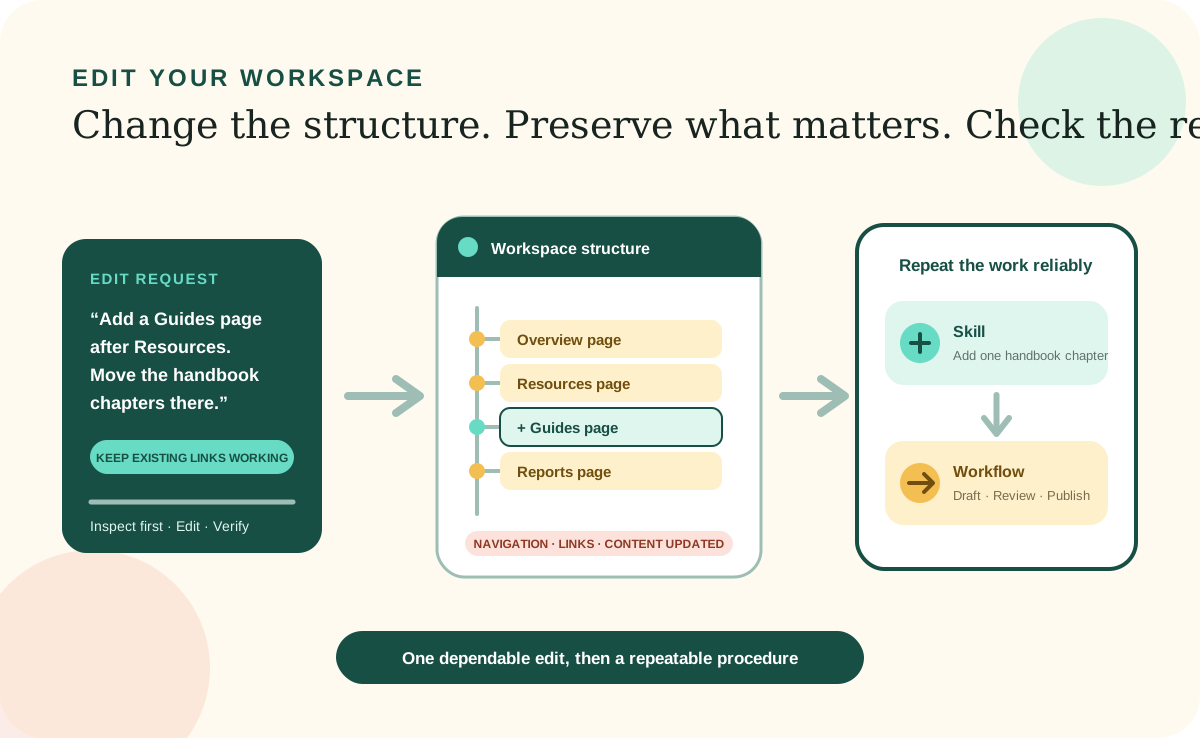
You can edit a Desktop Workspace by describing what should be different after the work is finished. A coding agent can inspect the workspace, find the relevant information and files, make the authorized changes, update connected pages, and check the result. You do not need to know the codebase before you begin.
The clearest requests identify the part of the workspace, the kind of change, what must remain true, and how to verify the result. This article shows how to change content and structure, add or remove pages and sections, and turn repeated editing work into dependable Skills and Workflows.
Describe the kind of edit
Separate content, structure, behavior, and appearance.
An edit may change the information on a page, the way the workspace is organized, what happens after an action, or how the interface looks. Naming the kind of change helps the coding agent inspect the right part of the workspace and prevents a small request from becoming an unnecessary rebuild.
Content
Change text, records, labels, instructions, statuses, examples, or other information without changing the surrounding structure.
Structure
Add, remove, rename, reorder, combine, or divide pages, sections, chapters, navigation groups, or folders.
Behavior
Change what a button, form, calculation, automation, Skill, or Workflow does and what should happen next.
Appearance
Change layout, spacing, typography, colors, cards, navigation, or responsive behavior without changing the underlying information.
Use shared workspace terms
Common names help the agent find the right layer.
Use the visible page name, heading, button label, or URL whenever possible. A screenshot with an arrow or circle is also useful when several elements look alike. You can combine everyday descriptions with the following terms; you do not need to use them perfectly.
Workspace and Local Folder
The complete project and the folder that holds its information, instructions, pages, procedures, outputs, and recovery files.
Page, view, route, and URL
A page or view is what you see. A route or URL is its browser location, such as /projects or /reports/monthly.
Main navigation and sub-navigation
The links between major areas and the secondary links within one area. Say whether a page should appear, move, or disappear from either level.
Section, chapter, and heading
Ways of dividing information inside a page, guide, report, or document. Name the heading before or after the place you want changed.
Header, footer, sidebar, card, and panel
Visible containers that help locate an edit. Add a label or position, such as the Status card in the right sidebar.
Form, field, table, list, and filter
Elements used to enter, organize, and narrow information. Refer to the field label, table heading, or filter name when available.
Record, source of truth, and generated view
The dependable saved information, its authoritative home, and a page or report produced from it. Ask the agent to update the source before its views.
Template and shared component
A reusable pattern or interface part used in more than one place. Changing one can affect many pages, documents, or records.
Agent Instructions, Skill, and Workflow
Lasting project rules, a repeatable procedure for one focused task, and a complete journey that connects tasks and decisions.
Inspect before changing
Ask the agent to find dependencies and propose the smallest edit.
A page can depend on a shared navigation component, a template, saved Workspace Information, and a Skill that updates it. Before a structural or behavioral change, ask the coding agent to inspect the relevant area and explain what will be affected. This is especially important when the same section or component appears in several places.
Tell the agent whether you want a diagnosis, a plan, or an implementation. If you are still deciding, request a read-only review and ask it not to edit files. If you are ready for the change, give clear boundaries and ask it to preserve unrelated work.
Change the workspace structure
Add and remove pages, sections, and chapters deliberately.
Adding a page usually involves more than creating visible content. The agent may need to add a route, place the page in main or sub-navigation, connect it to authoritative information, reuse the correct layout, and update links or indexes. State the new page's purpose, audience, location, required content, and relationship to existing pages.
Removing something needs an extra decision. Hiding a page from navigation leaves it available by direct link. Archiving preserves it for history but removes it from current work. Deleting removes the content and may break links or erase useful context. Tell the agent which outcome you mean and ask it to identify inbound links or dependent procedures before anything is deleted.
The same principle applies inside a page or document. When adding a section or chapter, name what comes before and after it, what information belongs inside, and whether it should appear in a table of contents. When removing one, say whether its information should move elsewhere, remain archived, or be deleted after approval.
Name the structural change
Add, rename, reorder, split, combine, hide, archive, or delete the page, section, chapter, or navigation item.
Place it precisely
Use a parent page, navigation group, nearby heading, chapter number, URL, or visible label to identify its location.
Explain what happens to the information
State what should move, remain, merge, become historical, or be removed, and which record stays authoritative.
Check connected paths
Update navigation, links, breadcrumbs, indexes, tables of contents, Skills, Workflows, and generated views that depend on the old structure.
Verify the finished journey
Open the affected pages, test important actions, check mobile navigation, and confirm that old links redirect or fail in the intended way.
Edit the information safely
Change the authoritative record before the page that displays it.
When a dashboard, report, or profile shows saved Workspace Information, editing only the visible page can leave the dependable record unchanged. Ask the coding agent to find the source of truth, update it, and then refresh every generated or connected view. This keeps future work from restoring the old value.
Separate confirmed facts from suggestions. If you are drafting new copy, a policy, or a classification that still needs approval, tell the agent to save it as a draft rather than quietly treating it as current information. For broad content changes, begin with one representative record or page and review the result before applying it everywhere.
Create repeatable editing procedures
Use a new Skill and Workflow when the edit will happen again.
A one-time prompt is enough for an unusual correction. When people will repeat the same kind of edit, ask the coding agent to create a focused Skill. The Skill should say when to use it, what information is required, which authoritative records may change, what must not change, when approval is required, how to verify the result, and what to report.
Create a Workflow when several Skills or decisions form a complete journey. A Workflow can connect an intake step, a content update, a human review, page regeneration, link checks, and a completion report. It should show the normal path, important branches, approval stops, and what a successful finish looks like.
Start from a real example
Complete one representative edit and note the information, decisions, files, checks, and exceptions it actually required.
Keep each Skill focused
A Skill such as Add a handbook chapter is easier to understand and test than a broad instruction such as Maintain the workspace.
Connect Skills with a Workflow
Define the order, branches, handoffs, human approvals, failure paths, and final report for the complete editing journey.
Test normal and problem cases
Try complete input, missing input, a rejected approval, and a broken dependency so the procedure teaches the agent when to ask or stop.
Improve an existing Skill
Tell the agent what the built-in Skill should do differently.
You can edit a built-in Skill by describing the behavior that should change. Name the Skill if you know it, explain what happens today, provide an example of the desired result, and identify anything the Skill must continue to protect. The coding agent can locate the Skill, inspect its current instructions and supporting files, and propose a focused update.
Ask whether the Skill is safe to edit in place. Some built-in or packaged Skills may be replaced during an upgrade, or the workspace may expect their original structure and metadata. When appropriate, the agent can preserve the built-in Skill and create a workspace-specific version or documented extension instead. The best choice depends on how that workspace manages updates.
After the edit, test the Skill with a normal case, a case that should trigger the new behavior, and a case that should still stop for clarification or approval. Updating instructions without testing the trigger and output can create a procedure that reads well but is not selected or followed as intended.
Review and recover
Make small changes, verify the whole path, and keep a way back.
Before a broad structural edit, confirm that the workspace has a recoverable copy or version history. Ask the agent to preserve unrelated changes and summarize the exact files or records it expects to touch. For deletion, publishing, sending, purchasing, or other consequential actions, require current approval at the point of action.
Afterward, review more than the edited screen. Check navigation, direct URLs, breadcrumbs, forms, search or filters, related links, mobile layout, and any Skill or Workflow that uses the changed structure. Ask the agent what it tested, what it could not verify, and which remaining decision still belongs to a person.
Finally, save lasting knowledge in the right place. Current facts belong in Workspace Information. Project-wide rules belong in Agent Instructions. A repeatable task belongs in a Skill. A connected journey belongs in a Workflow. The page is a useful view, but it should not become the only place where an important decision survives.